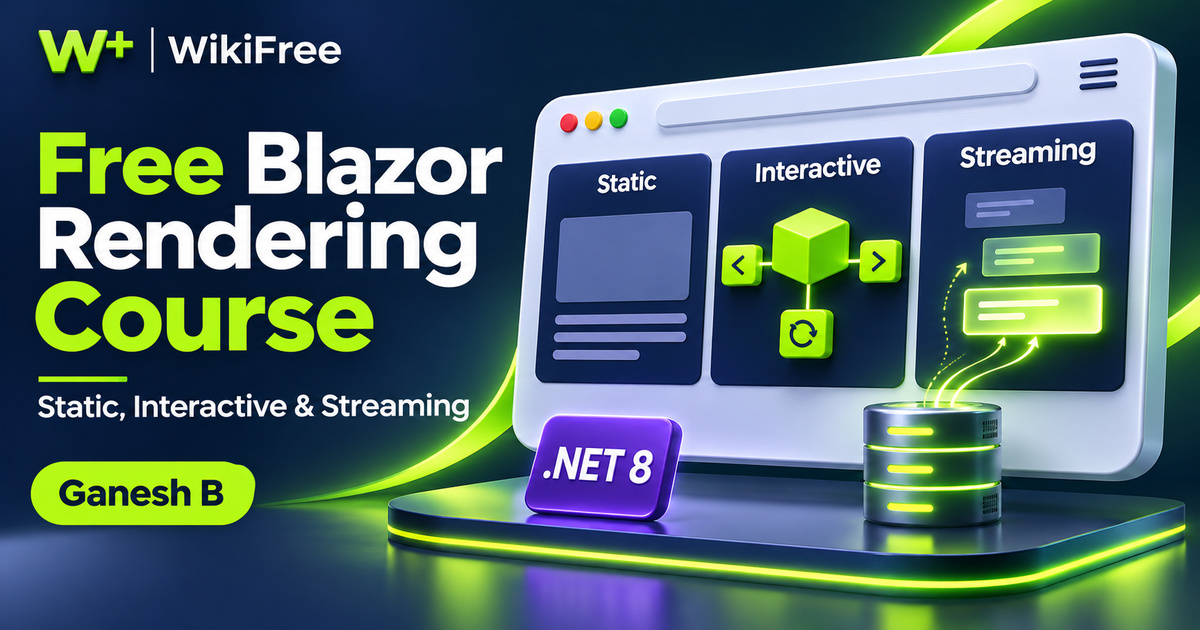
Listed as Free on Udemy when checked on 7 November 2026. No coupon or subscription trial is required for the listed lessons. Enrollment needs a Udemy account; availability can change.
About this course
A page can arrive as ready-to-display HTML, wait for interactive behavior, or reveal useful content while an asynchronous operation finishes. Those choices affect how a Blazor application feels and how its components run. Ganesh B’s New Blazor Features in .NET 8: A Mini Course introduces the rendering features that brought these options into the Blazor Web App model.
The free English course contains eleven videos across three sections, totaling one hour, five minutes and thirty-five seconds. Its April 2024 material targets developers who already have .NET web-development experience. The source labels the course Beginner, but the stated prerequisite makes it a focused introduction to these features, rather than an introduction to programming or web development.
| Official course | New Blazor Features in .NET 8: A Mini Course |
|---|---|
| Created by | Ganesh B |
| Platform | Udemy |
| Language | English |
| Level | Intermediate |
| Listed duration | 65 minutes; 11 lectures across 3 sections |
| Completion terms | Not included with a new free enrollment |
What you’ll learn
Explore the Blazor Web App template, static server rendering, enhanced navigation and form handling, and streaming rendering. Compare interactive server, WebAssembly and Auto modes. See how sections organize component-supplied content and how Razor components can produce HTML outside an HTTP request. Build vocabulary for selecting and explaining rendering behavior.
Skills you’ll gain
- Render-mode comparison
- Static server rendering
- Enhanced navigation
- Streaming UI reasoning
- Component sections
- HTML rendering workflows
Start with the intended toolset
The opening lessons establish the scope and tools before moving into the web-app template. The tool discussion references Visual Studio 2022 and the ASP.NET web-development workload. Because this is material for .NET 8, follow version-appropriate documentation when recreating a project. Template options, defaults and surrounding tooling can change; a matching concept does not guarantee an identical screen in every later release.
Understand the unified UI model
The high-level goal lesson introduces a unified component-based approach to full-stack web UI. That is useful context for understanding why one application can use different rendering choices. It does not mean MVC and Razor Pages have disappeared or that every existing application must be rewritten. Concentrate on the particular options available to a Blazor Web App.
Connect templates with behavior
The template lesson connects project creation with interactive render modes and where interactivity is applied. These are architectural choices as well as setup options. A component’s rendering location and its ability to handle Blazor events influence what it can depend on and how it communicates. Understanding that distinction is more durable than memorizing the order of project-wizard controls.
Separate static HTML from interactivity
Static server-side rendering produces HTML on the server for the browser to display. In that mode, a component does not have Blazor’s interactive event handling. This does not make the browser incapable of following links or submitting ordinary HTML forms. Separate familiar browser behavior from the persistent component interactivity provided by an interactive render mode.
Improve navigation deliberately
Enhanced navigation and form handling receive a substantial lesson. The course introduces fetch-based updates and document changes that can avoid a full-page refresh in supported situations. Think of this as improving the navigation experience, not as silently converting all static components into interactive ones. Applications still need to follow the framework’s supported navigation and form-handling conditions.
Show progress while data loads
Streaming rendering addresses a different delay. A page can first show available content and placeholders, then send updated content when an asynchronous operation finishes. This can make waiting easier to understand; it does not make the underlying database query or network operation inherently faster. Microsoft also distinguishes the .NET 8 streaming attribute syntax from later versions, so check the documentation for the version being used.
Compare the interactive choices
The longest lesson compares static, interactive server, interactive WebAssembly and interactive Auto rendering. Server interactivity runs component logic on the server; WebAssembly interactivity runs it in the browser. Auto can initially use server interactivity and use the downloaded client bundle on subsequent visits. It does not dynamically switch an already displayed component from one mode to another midway through its lifetime.
Respect the execution boundary
These alternatives call for deliberate boundaries. Code that depends on a server-only service cannot simply be assumed to run unchanged in the browser. Likewise, an interactive mode is not a blanket claim of better speed or a complete deployment strategy. Use the comparison to ask where a component should execute, what it needs to access and what initial loading behavior is acceptable.
Place content and render fragments
The sections lesson introduces SectionOutlet and SectionContent as a way to place component-provided content into a designated location. That can help explain how a page contributes to shared presentation. The final feature lesson moves outside a web request and uses a console application to render Razor components into HTML, with possible uses such as fragments for email or static output.
Keep the mini-course scope clear
Rendering HTML outside a request does not itself send an email, configure a hosting service or create a fully interactive application. Treat it as a rendering capability that another workflow can use. The mini-course brings these features together as an overview; it is not a complete application build, authentication course or production deployment walkthrough.
Choose a mode for each requirement
For an optional editorial exercise, sketch a documentation page with mostly static text, one interactive filter and a slow-loading status panel. Decide what each region needs from the server or browser, and explain which rendering feature addresses that need. Keep the exercise conceptual before writing code. The useful outcome is a clear reason for each choice, rather than selecting every available feature at once.
Related courses for your next step
- Review C# programming foundationsExplore C# Console Basics
Revisit classes and core C# concepts before extending your .NET web-development knowledge.
Beginner
Frequently asked questions
Can a complete beginner start here?
The course expects .NET web-development experience. Its Beginner label describes an introduction to these Blazor features, not first programming lessons.
Does streaming rendering make a database query faster?
No. It can display initial content and later updates while asynchronous work completes; the underlying operation still takes its own time.
Does Interactive Auto change a component’s mode while it is already displayed?
No. Auto chooses an interactivity mode for that component instance; later visits can benefit from the downloaded client bundle.
Questions & discussion
Share a useful question or correction. Comments appear after moderation. Please avoid personal or sensitive information.