Coursya learning path 39 · Intermediate
The access trail
Make the task work through more than one route.
Repair a small HTML form and page structure, then document keyboard, labeling, contrast and error-feedback checks.
Video duration uses the selected lessons only. Reading and practice times are planning estimates; repeat difficult work as needed.
Table of Contents
A clear starting point
Who this is for
Basic HTML and CSS. A modern browser and text editor; no paid audit service.
Your practical result
Repair a small HTML form and page structure, then document keyboard, labeling, contrast and error-feedback checks.
This is a focused repair and testing exercise, not a legal opinion or a conformance certification for an entire website.
Access and cost
The written course is public and free. The project uses a local HTML file, browser and text editor. Optional automated tools and assistive technologies depend on your environment.
The project pack contains an original workbook, case inputs, an evidence log and reference notes. Some technical paths include starter code and a runnable reference. Read the pack README before starting.
Three-minute readiness check
Answer first, then open each explanation. A missed answer identifies what to revisit; it does not stop you from starting.
Does a placeholder replace a label?
No.
Does an automated scan prove full accessibility?
No. Manual and task-based checks remain necessary.
Should focus remain visible?
Yes.
The case you will work on
The fictional Hawthorn Workshop signup page has an unlabeled email field, a clickable div used as a button, low-contrast helper text and an error shown only in red. The supplied local fixture contains these intentional issues and uses no real personal data.
| Issue | Required outcome |
|---|---|
| Unlabeled email field | Programmatic visible label |
| Clickable div | Native keyboard-operable button |
| Low-contrast text | Measured readable contrast |
| Red-only error | Text explanation linked to the field |
These are supplied synthetic inputs, not observations from a real organization. Label assumptions and any additional data you create.
Keep an evidence trail
Save each stage output in the project folder. In evidence_log.csv, record the decision, the artifact or test that supports it, what failed, and the revision you made.
Your route from learning to evidence
- Stage 1Repair document structureA semantic page structure and heading map.65 minutes of original practice
- Stage 2Make the form operable by keyboardA keyboard-operable form and test log.80 minutes of original practice
- Stage 3Label inputs and explain errorsA labeled form with understandable feedback.85 minutes of original practice
- Stage 4Review contrast and non-text contentA contrast record and image-alternative review.70 minutes of original practice
- Stage 5Combine automated and manual reviewA repaired page and bounded accessibility report.85 minutes of original practice
- Final projectMake the evidence reviewableConnect the five stage outputs and test a change.210 minutes estimated
Progress stays in this browser. Tick a stage only after its evidence check passes. This is a personal checklist, not a certificate.
Why these source courses
The path uses selected material from courses already published on Coursya. The original exercises below connect that material to one practical outcome. Follow only the listed assignments; completing the full source courses is optional.
Google Learn Accessibility: Free Web Accessibility Course
Google web.dev provides the public written accessibility curriculum. Assigned reading groups follow its published topics; time allocations are editorial estimates.
Access: Free public lessons and practice using browser/local code, Chrome DevTools Lighthouse and a free compatible screen reader such as NVDA; no paid toolkit required. No account needed to read; optional standard Google developer profile for badge collection is free.
Certificate: Accessibility developer-profile badge offered through the course quiz. No formal certificate, credit, accreditation or website-compliance certification promised.
Learn it, apply it, check it
Work in order. Every stage produces something the next stage uses. Revisit the repair instruction when a check fails.
Repair document structure
Basic HTML and CSS. A modern browser and text editor; no paid audit service.
The idea to use
Semantic structure helps people navigate by headings and landmarks. Use one clear page topic, a logical heading hierarchy and native HTML elements for their intended purpose. The practice page should identify its language and give the main content a meaningful structure. More ARIA is not automatically better; begin with appropriate native markup.
Read with a purpose
The document and content structure
30 minutes · Coursya reading estimate. Open the provider resource.
Your 65-minute lab
Inspect the fixture and repair its page language, headings and main landmark. Write a short navigation outline.
Save: A semantic page structure and heading map..
Evidence check
The outline describes the page without relying on font size alone.
If it fails: Do not choose heading levels solely to get a desired visual size.
Make the form operable by keyboard
Bring your previous output: A semantic page structure and heading map.
The idea to use
Native buttons and inputs provide expected keyboard behavior. Follow the tab order through the whole task and keep focus visibly distinguishable. A control that responds only to a mouse click is not an equivalent interaction. Avoid positive tabindex values as a shortcut for a confusing document order; fix the underlying sequence.
Read with a purpose
Keyboard focus and JavaScript
35 minutes · Coursya reading estimate. Open the provider resource.
Your 80-minute lab
Replace the clickable div with a button and complete the form using only the keyboard. Record the focus sequence.
Save: A keyboard-operable form and test log..
Evidence check
Every interactive control is reachable, focus is visible and no keyboard trap occurs.
If it fails: Do not remove outlines without providing a clearly visible replacement.
Label inputs and explain errors
Bring your previous output: A keyboard-operable form and test log.
The idea to use
Associate a visible label with each field using matching for and id values. Instructions and errors should explain what the user must do and be programmatically associated where appropriate. Color can reinforce an error but cannot be its only signal. Preserve valid user input after an error so correction does not require starting again.
Read with a purpose
Forms and patterns/components
40 minutes · Coursya reading estimate. Open the provider resource.
Your 85-minute lab
Add the email label, useful instructions and a text error linked to the input. Test blank and invalid values.
Save: A labeled form with understandable feedback..
Evidence check
The field has an accessible name, the error is readable without color and valid input is retained.
If it fails: A red border alone does not explain why submission failed.
Review contrast and non-text content
Bring your previous output: A labeled form with understandable feedback.
The idea to use
Measure text contrast rather than judging it by eye. For this exercise, use the common WCAG AA thresholds of 4.5:1 for normal text and 3:1 for large text, applying the definitions in the referenced guidance. Meaningful images need an appropriate text alternative; decorative images should not create redundant noise. A single ratio does not settle the accessibility of the whole page.
Read with a purpose
Color and contrast; images
35 minutes · Coursya reading estimate. Open the provider resource.
Your 70-minute lab
Check the supplied color pairs, replace the failing helper text color and classify any images as informative or decorative.
Save: A contrast record and image-alternative review..
Evidence check
The report includes actual foreground/background values and distinguishes image purpose.
If it fails: Do not add repetitive alt text to a purely decorative shape.
Combine automated and manual review
Bring your previous output: A contrast record and image-alternative review.
The idea to use
Automated tools can find some markup and contrast problems, while keyboard behavior and the clarity of instructions require human judgment. Record the tool and version if one is used, then repeat the actual signup task manually. A screen-reader check is valuable when available, but do not claim it was performed if you only inspected HTML.
Read with a purpose
Automated, manual and assistive technology testing
40 minutes · Coursya reading estimate. Open the provider resource.
Your 85-minute lab
Run an available browser accessibility check, repeat the keyboard task and write an issue log with resolved and remaining items.
Save: A repaired page and bounded accessibility report..
Evidence check
The report separates automated findings, manual checks and tests not performed.
If it fails: Do not label the page fully compliant based on a clean automated report.
A worked reference to compare
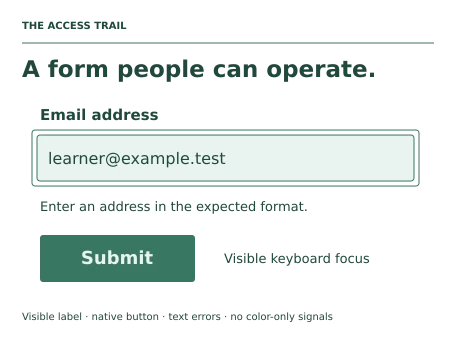
A visible label connected with for/id gives the email field a meaningful name. A native button restores expected keyboard activation. A linked text error explains the correction even when the red border is not perceived.
Compare your reasoning as well as the result. If your answer differs, state the assumption or input that explains the difference. Reference notes are for checking after an attempt; copying them is not evidence of independent work.
Your final project
Your brief
Deliver the original and repaired HTML, a change log, keyboard sequence, contrast checks and residual-issue report. Have another reviewer attempt the task if possible and label that evidence accurately.
Time box: 3h 30m estimated. Extend it if a gate needs repair.
Hand in these artifacts
- A semantic page structure and heading map.
- A keyboard-operable form and test log.
- A labeled form with understandable feedback.
- A contrast record and image-alternative review.
- A repaired page and bounded accessibility report.
- A short README: outcome, how to inspect or run the work, assumptions and limitations.
- A before-and-after change test and the completed evidence log.
Run a final review
- Use the supplied reference to reconcile the baseline result.
- Choose one relevant input or constraint to change. Write your expected effect before testing it.
- Run the calculation, walkthrough or test again and save the actual result.
- Ask a peer to inspect the evidence, or perform a separate self-review. Label which review you used.
- Score the work using the rubric and repair every critical failure.
Review rubric · 100 points
| Criterion | Points | Evidence to inspect |
|---|---|---|
| Practical outcome and case reasoning | 25 | Repair a small HTML form and page structure, then document keyboard, labeling, contrast and error-feedback checks. |
| Five stage checks | 30 | Award 6 points for each stage only when its stated gate is demonstrably met. |
| Traceable evidence | 20 | Artifacts, inputs and calculations or tests are reproducible; synthetic and simulated evidence is labelled. |
| Revision after a changed condition | 15 | Change one input or constraint, predict the effect, test it and record the result. |
| Handoff quality | 10 | A reviewer can find the files, follow the instructions and understand the remaining limitations. |
Completion target: at least 80/100, all five stage gates passed, and every critical issue below corrected. This is a learning benchmark, not an accredited qualification.
Critical issue: The form can be completed by keyboard and errors and labels do not depend on color or placeholders alone.
Before you go further
What will I be able to produce?
Repair a small HTML form and page structure, then document keyboard, labeling, contrast and error-feedback checks.
Is the whole path free?
The written course is public and free. The project uses a local HTML file, browser and text editor. Optional automated tools and assistive technologies depend on your environment.
Do I need to finish every source course?
No. Follow the selected assignments at each stage. Source courses provide context, while the original case, labs and final review build the practical result. Extra study is optional.
What counts as completion?
Complete all five stage checks, earn at least 80/100 on the final rubric and correct every critical issue. This is a focused repair and testing exercise, not a legal opinion or a conformance certification for an entire website.
Questions & discussion
Share a useful question or correction. Comments appear after moderation. Please avoid personal or sensitive information.