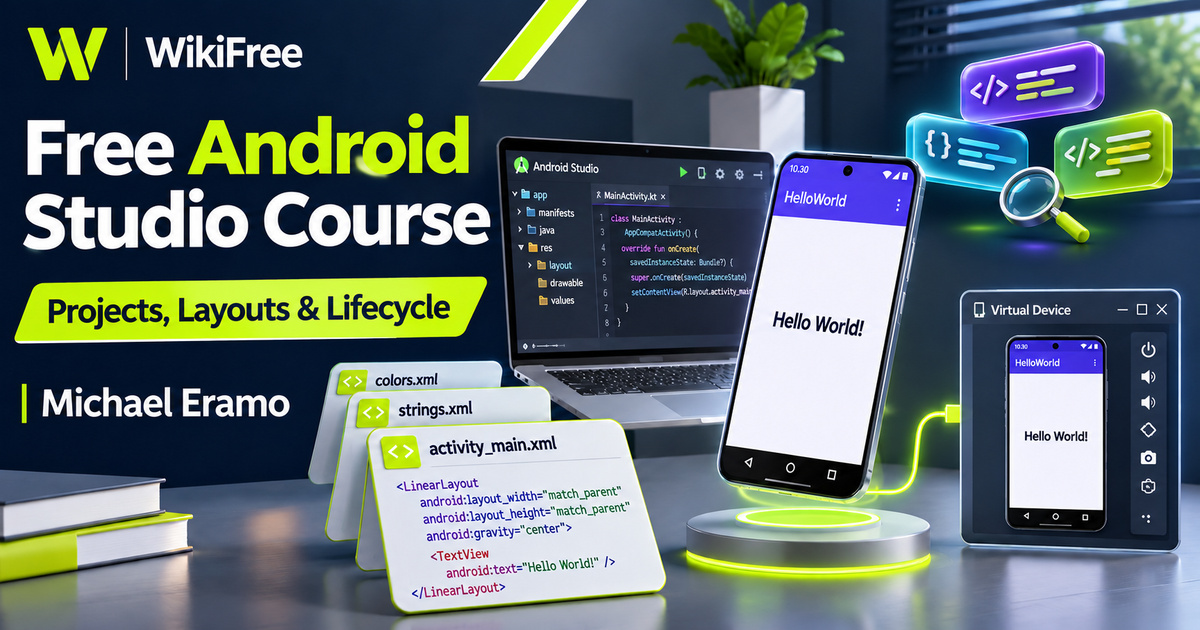
Listed as Free on Udemy when checked on 7 November 2026. No coupon or subscription trial is required for the listed lessons. Enrollment needs a Udemy account; availability can change.
About this course
Opening Android Studio for the first time can leave you looking at a project full of files without knowing which ones matter. Michael Eramo’s introductory course tackles that early confusion. It walks through setup and then explains how a small Android project connects its activity, manifest and layout, giving you a clearer starting point for learning to build applications.
The free English offering contains ten videos in three sections, totalling one hour, twenty-seven minutes and twenty-nine seconds. The listing was updated in January 2023. Its focus is a beginner’s orientation to Android Studio and a Kotlin-based project using traditional XML layouts. A larger paid course is promoted separately; this short introduction does not include that whole programme.
| Official course | The Art of Doing: A Beginners Look at Android Studio |
|---|---|
| Created by | Michael Eramo |
| Platform | Udemy |
| Language | English |
| Level | Beginner |
| Listed duration | 87 minutes; 10 lectures across 3 sections |
| Completion terms | Not included with a new free enrollment |
What you’ll learn
Set up the development environment, create a starter project and explore virtual and physical testing devices. Identify the manifest, main activity and layout resources, then use logging to reason about activity lifecycle callbacks. Learn to connect what appears on the screen with the files and events behind it.
Skills you’ll gain
- Android Studio orientation
- Starter-project navigation
- Virtual-device awareness
- Manifest and resource reading
- XML layout fundamentals
- Activity lifecycle observation
Start with the environment
The installation and project-creation lessons give you a practical route into the IDE. Check the current Android Studio system requirements before following the setup, particularly if you intend to run an emulator. Hardware, operating systems and development-tool releases change. A successful installation is the beginning of the workflow, not a guarantee that every historical template or setting will appear in the same place.
Know the device you are testing
The next two lessons separate virtual-device testing from using a physical Android device. A virtual device lets you work with a selected device profile and Android system image. A physical device provides a different testing environment and needs the appropriate development connection. Understand which target you are running before interpreting a result; success on one configuration does not establish compatibility with every phone.
Give each file a role
The interface tour introduces the project structure and the relationship between the main activity and its layout. Start by distinguishing code, resources and configuration. These groups serve different purposes even when the IDE displays them together. A small change becomes easier to trace when you can say whether it affects program behavior, a visible resource or the project’s setup.
Trace presentation back to resources
The manifest lesson and associated resource examples introduce application identity and presentation. The course’s stated learning outcomes include changing the name, launcher icon and color theme. Treat these as an opportunity to understand references between files rather than simply swapping values until something looks different. A string resource, for example, gives text a named location that other parts of the project can reference.
Understand initialization callbacks
The main-activity lesson introduces initialization and the connection to the layout. Android’s callback is named onCreate. It is useful to recognize that exact name and to distinguish it from an ordinary method you invent yourself. The system calls lifecycle methods at defined transitions, so their role is different from a function that only runs when your own code explicitly invokes it.
Match the interface approach
The layout lesson uses the Views and XML approach, including a layout resource and visual editing. Current Android Studio templates also support Jetpack Compose, which defines interfaces differently. Android’s current project guide recommends Empty Activity for Compose projects. Do not expect a Compose starter project to contain the same XML layout file as the course demonstration; choose learning materials and templates that describe the same approach.
Observe lifecycle events
The lifecycle lesson uses Logcat to observe transitions such as creation, starting, resuming, pausing and stopping. Logs can help connect a user action with the callbacks you actually see. Avoid treating one observed sequence as a universal script: returning to an activity, rotating a device and ending a process are different situations with different consequences for application state.
Respect the limits of a callback
Android’s documentation also warns that onDestroy is not guaranteed when the system kills an application process. That matters when thinking about saving information or cleanup. This short course is an introduction to observing lifecycle behavior, not a complete persistence or background-work design. Use the official lifecycle guidance when you move from a demonstration into an application that must preserve user data.
Try a small observable change
For optional practice, create a small project you own and identify its activity, manifest and layout or interface definition. Change a visible label, run it on one available test target and note which file supplied the text. Then observe a simple navigation away from and back to the activity. This is an editorial exercise to reinforce the lesson themes, not an additional instructor assignment.
Separate the introduction from further study
The final short bonus video points toward further paid study. No purchase is represented as necessary to watch the ten videos in this free offering, and no complete commercial app, store publication or certificate is promised here. The useful milestone is understanding a starter project well enough to explain how its files connect and what the development tools are showing you.
Related courses for your next step
- Practise programming fundamentalsFree Python Programming Course
Build confidence with variables, small programs and explicit input-output reasoning.
Beginner
Frequently asked questions
Is this a full Android app-development programme?
No. It is a short introduction to Android Studio, project files, devices and activity lifecycle. The larger paid programme is separate.
Will a Compose project contain the same XML file?
Not necessarily. The course demonstrates a Views and XML approach, while Compose defines interfaces differently. Match the template to the material you are following.
Must I own a physical Android phone?
The listed requirements allow an emulator-capable computer or a physical Android device for testing. Check current hardware requirements before choosing your setup.
Questions & discussion
Share a useful question or correction. Comments appear after moderation. Please avoid personal or sensitive information.