Listed as Free on Udemy when checked on 7 November 2026. No coupon or subscription trial is required for the listed lessons. Enrollment needs a Udemy account; availability can change.
About this course
A mobile interface becomes easier to understand when you can see how its visible pieces relate to its code. This introductory course with Chris Ching starts that connection: explore the development environment, arrange interface elements and begin using Swift to represent information and organize actions. It suits an absolute beginner who wants a manageable first look at iOS development.
The free English material on Udemy consists of nine videos in one section, lasting one hour, fifty minutes and eight seconds. Although the source title refers to a fourteen-day challenge, this listing contains an introduction, lessons numbered one through seven and a closing signpost. The remaining challenge is on CodeWithChris, outside this Udemy offering; it is not included in the scope described here.
| Official course | The 14 Day Beginner Challenge – Intro to iOS/SwiftUI (2021) |
|---|---|
| Created by | Chris Ching |
| Platform | Udemy |
| Language | English |
| Level | Beginner |
| Listed duration | 110 minutes; 9 lectures across 1 sections |
| Completion terms | Not included with a new free enrollment |
What you’ll learn
Become familiar with the Apple development workflow and the main areas of Xcode. Explore SwiftUI previews, interface elements and containers, then connect those ideas with variables, constants, data types and functions. Use the lessons as a starting point for explaining how a simple screen is arranged and how code can support it.
Skills you’ll gain
- Xcode workspace orientation
- SwiftUI preview concepts
- View and container composition
- Basic interface layout
- Swift values and types
- Function organization
Place the tools in their workflow
The opening ecosystem lesson gives a map of the tools involved in making and distributing an app. Keep those stages separate in your notes. Writing code, trying an interface and distributing software to other people involve different tasks. An overview helps you recognize their names, but it is not a complete release checklist or evidence that a finished app will be accepted for distribution.
Find your way around Xcode
Next comes orientation inside Xcode: starting a project, understanding its files and finding your way around the workspace. A helpful study method is to explain what you are looking at before changing it. Distinguish the project navigator, the code editor and the interface preview so that an unfamiliar screen does not become a reason to click through settings without understanding their purpose.
Learn from small visual changes
The interface lessons make the relationship between code and appearance more concrete. A preview lets you inspect the result of a small change without treating every edit as a new application. Work in modest steps: change a label, consider its spacing and then describe the effect. This is a useful learning habit even when a newer Xcode version presents the preview controls differently.
Arrange relationships on a screen
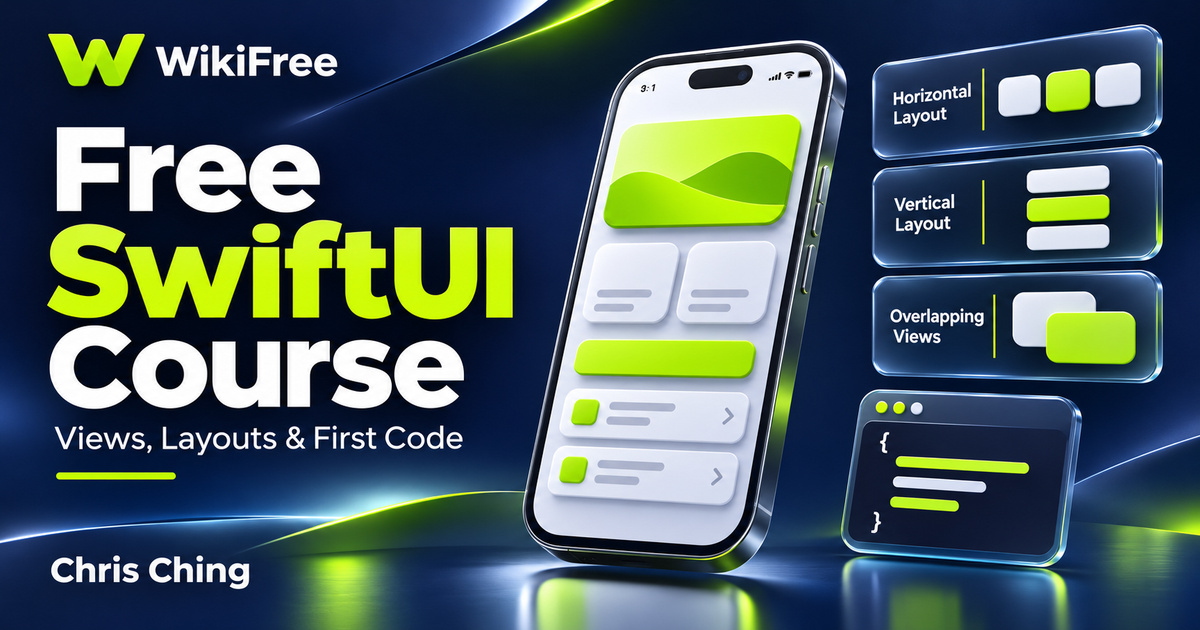
Views and containers give a screen its structure. Apple describes horizontal, vertical and overlapping stacks as basic building blocks that can be combined into more complex arrangements. The important design question is which elements belong beside one another, which belong in a sequence and which share a layer. Think about that relationship before adjusting colors or decorative details.
Understand the example’s boundary
The course applies interface construction to a War Card Game screen. Its stated lesson scope is building that user interface. The useful focus here is the arrangement of visual elements. Building the screen is one stage of a larger application; implementing game rules, testing behavior and preparing a release require additional work beyond this introductory listing.
Connect values with the interface
After the visual work, variables, constants and data types introduce the information behind an interface. A label can display a value, but the program still needs a suitable way to represent that value. When practising, distinguish a quantity from its written description and decide which information is expected to change. Explaining those choices is more useful than memorizing a sequence of declarations.
Group work into functions
The functions lesson then groups related statements into named operations. Read a function by asking what it receives, what it does and whether it returns a result. A function with a clear purpose is easier to reuse and inspect than a collection of unrelated statements. This also gives you a practical bridge between basic language syntax and the behavior an interface will eventually need.
Sketch a small practice screen
For optional practice, sketch a reading-progress screen with a title, a completed-item count and a short status message. Decide which parts should be arranged vertically and which should sit together on a row. Then describe a function that produces a status message from a count. This is an editorial study idea, not an additional project or assessment supplied by the instructor.
Prepare a suitable learning setup
The recordings were updated in April 2021. A Mac is needed to follow the demonstrated development setup, and current Xcode installation requirements should be checked separately. Free video access does not supply hardware or optional external services. Apple allows learners to begin development with Xcode without paid program membership; distribution and additional services have their own requirements.
Choose a realistic next milestone
Use these lessons to become comfortable with the vocabulary and the first steps. The instructor directs learners elsewhere for the rest of the challenge, so do not equate this short introduction with finishing all fourteen days. There is no promise of a certificate, employment or App Store approval. A sensible immediate goal is to explain a small layout and change a few simple values independently.
Related courses for your next step
- Strengthen your programming foundationsFree Python Programming Course
Practise basic programming reasoning in another beginner-friendly sequence.
Beginner
Frequently asked questions
Does Udemy contain the full fourteen-day challenge?
No. This listing has nine videos, including lessons one through seven. The closing lecture directs learners to CodeWithChris for the remaining challenge.
Do I need a Mac or a paid developer membership?
A Mac is required to follow the demonstrated Xcode setup. Paid developer membership is not required to begin learning with Xcode; distribution and additional services are separate.
Will I finish a complete game or publish an app?
The available material introduces layouts and basic code, including a game-interface example. It does not establish a complete game or guarantee app publication.
Questions & discussion
Share a useful question or correction. Comments appear after moderation. Please avoid personal or sensitive information.